


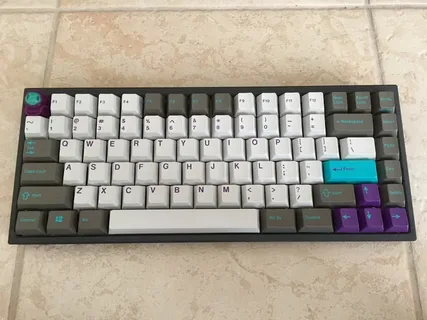
Building a custom 75 keyboard can be a rewarding project for both keyboard enthusiasts and anyone looking to craft a personalized typing experience. A 75% layout is compact, offering a great balance between functionality and portability, making it ideal for those who want a high-performance keyboard without the bulk of a full-size board. In this guide, we’ll walk you through the essential steps on how to build your own custom 75% keyboard.
What You’ll Need to Build Your Custom 75% Keyboard
Before you get started, it’s important to gather all the necessary components. Here’s a quick rundown of what you’ll need:
- 75% Keyboard Case
This is the enclosure that holds all the components together. You can find various designs, including plastic, metal, or acrylic. - PCB (Printed Circuit Board)
The PCB is the heart of your keyboard. It connects all your switches and tells your computer what key was pressed. Make sure to choose a PCB that supports the 75% layout. - Switches
Mechanical switches come in different types (linear, tactile, clicky) and act as the mechanism that registers each keystroke. You’ll need around 84 to 87 switches for a 75% layout. - Keycaps
Keycaps are the part you actually press. Custom keycap sets come in a variety of materials and profiles, so choose one that matches your preferences for comfort and style. - Stabilizers
These are used for larger keys like the spacebar and enter key. They ensure a smooth and consistent keystroke. - Soldering Tools
If you’re using a PCB that requires soldering, you’ll need a soldering iron, solder, and possibly desoldering tools for corrections. - Lubing Kit (Optional)
Lubing your switches can improve the typing feel and sound, making your custom keyboard even more enjoyable to use.
Step-by-Step Guide: How to Build Your Own Custom 75% Keyboard
Step 1: Assemble Your Tools and Components
Before diving into the build, ensure you have all the components and tools laid out. It’s essential to have a clean and organized workspace for a smooth building process. If you’re new to keyboard building, you may want to watch some tutorials online to familiarize yourself with the process.
Step 2: Install the Stabilizers
Start by installing the stabilizers onto the PCB. These components will support the larger keys, such as the spacebar, enter, and shift keys. Make sure they’re secured tightly to avoid any wobbling or uneven keystrokes later on.
Step 3: Mount the Switches
Next, you’ll need to install your mechanical switches onto the PCB. If your PCB requires soldering, carefully insert each switch into the corresponding holes, ensuring they fit snugly. If your PCB has hot-swappable sockets, you can simply press the switches into place without needing to solder.
If you’re using a soldering PCB, it’s crucial to double-check your work. Ensure the pins of each switch align correctly with the solder pads on the PCB.
Step 4: Solder the Switches (If Necessary)
For PCBs that require soldering, this is the step where you’ll need to solder each switch’s pins to the PCB. This can be a delicate process, so take your time and use a steady hand. If you’re new to soldering, practice on some scrap components first to get comfortable with the technique.
Step 5: Lubing the Switches (Optional)
Lubing your switches isn’t mandatory, but it can greatly improve the typing experience. Use a lube kit to apply lubricant to the stems and springs of each switch. This will reduce friction and result in a smoother keystroke.
Step 6: Install the PCB into the Case
Once your switches are securely in place, it’s time to install the PCB into your keyboard case. Carefully align the PCB with the mounting points in the case and screw it in place. Some cases may require additional mounting plates or screws to secure the PCB properly.
Step 7: Add the Keycaps
Now it’s time for the fun part – adding the keycaps! Choose the keycaps that suit your style, and gently press them onto each switch. Be careful not to use excessive force, as this can damage the switches or keycaps.
Step 8: Test Your Custom Keyboard
Before you finish, it’s essential to test your new custom 75% keyboard. Plug it into your computer and test all the keys to ensure they register correctly. You can use online tools like Switch Hitter to check for any issues with key presses or to make sure the stabilizers are working smoothly.
Tips for Customizing Your 75% Keyboard
- Sound Dampening Mods: If you’re looking to improve the acoustics of your keyboard, consider adding dampening materials, such as foam or silicone, inside the case. This can reduce hollow sounds and enhance the overall sound profile.
- Custom Cables: Adding a custom cable can further personalize your setup. You can choose from braided, coiled, or even color-matching cables to complement the aesthetic of your keyboard.
- Keycap Materials: Keycaps are available in a variety of materials, such as ABS, PBT, and POM. PBT keycaps tend to be more durable and resistant to shine, while ABS keycaps are lighter and cheaper but may wear down faster.
Conclusion: How to Build Your Own Custom 75% Keyboard
Building your own custom 75% keyboard is a fantastic way to get a truly personalized and functional device. With careful planning and attention to detail, you can create a keyboard that suits your typing style, aesthetic preferences, and performance needs. By following the steps outlined above, you’ll not only learn how to build your own custom 75% keyboard, but also gain a deeper appreciation for the craftsmanship involved in the world of custom mechanical keyboards.
